Max yield
Give each piece room to find a fit
Pieces move independently to make better use of the slab. Choose this when fitting the job into less stone matters more than keeping related pieces together.

Auto cutting optimizer
Spend less time moving pieces around. Auto Nest arranges your countertop pieces on slabs and offcuts, so you can make better use of the stone you buy.
Included in Professional
Choose what matters for the job
A plain slab and a bold vein need different treatment. Choose the mode before you run Auto Nest, then check the result against the job.
Max yield
Pieces move independently to make better use of the slab. Choose this when fitting the job into less stone matters more than keeping related pieces together.
Veined
Veined mode considers vein direction and groups related pieces, such as a top and its waterfall. Review the matches: keeping a group together can take more stone.
Diagrams explain the two modes. They are not measured Auto Nest results.
Built around the stone in front of you
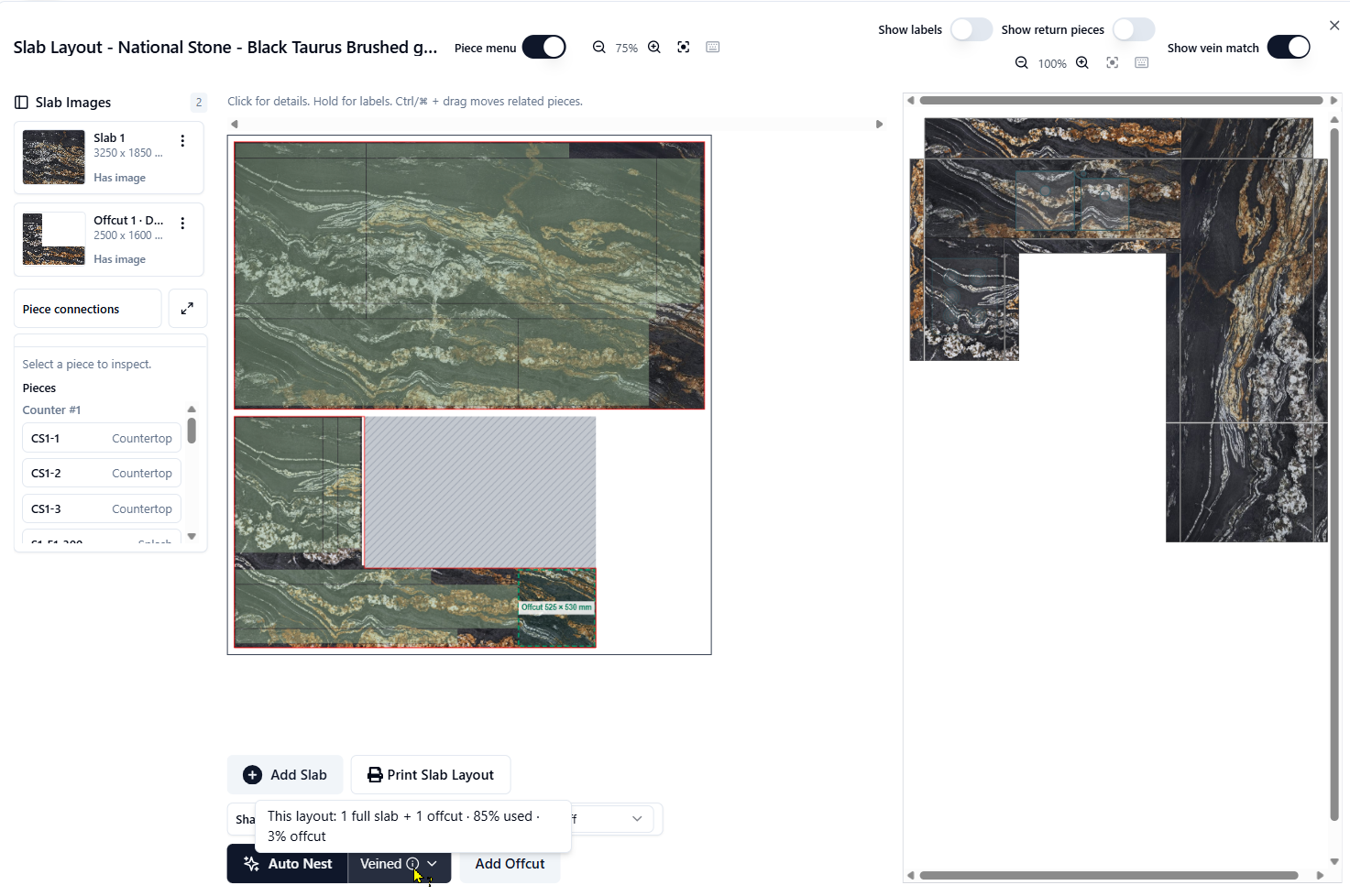
A tight layout still needs room for the blade. Set the cutting rules, protect the placements you want to keep, and let Auto Nest work around them.
Explore the slab layout workspaceUse your kerf and edge trim settings, and choose how far pieces may turn.
Keep selected pieces locked and account for the flaw zones marked on the stone.
Include available offcuts in the layout and see whether your pieces fit before reaching for another full slab.
Check the slab count, stone used and remaining space. Adjust the layout yourself or use Undo to go back.
Before you try it
Auto Nest works inside the quote you already draw and price. You can start with the pieces in that job.
Auto Nest looks for ways to fit your countertop pieces onto the slabs and offcuts in the layout. It accounts for cutting gaps and edge trim as it places the pieces. The result depends on the shapes, the available stone and the settings you choose.
Choose Veined mode to keep vein direction in mind and move related pieces together. If keeping a group together takes more stone, you may need to choose between the match and the slab count. Check the vein preview before you settle on the layout.
Yes. Add the offcuts you want to use to Slabs & Layout, then run Auto Nest. Whether the pieces fit depends on the offcut shape and size, along with your kerf, edge trim and rotation settings.
Yes. Mark the flaw zones on your slab or offcut and set the clearance you need. Auto Nest treats those areas as no-go zones when placing pieces. Check the marked areas and the finished layout against the actual stone before cutting.
Yes. Review the result, move pieces by hand if needed, or use Undo to return to the previous layout. You still choose the arrangement that works for the job.
Auto Nest arranges pieces on stone. It does not replace the machine programming and cutting checks in your CNC or saw software.
The automatic cutting optimizer is included in Professional at US$149 per month, with one user included. Standard includes manual slab layout and vein matching. The 14-day free trial gives you access to Professional.
Try it with your next job
Draw your pieces, add the stone and run Auto Nest. Try the cutting optimizer as part of your 14-day Professional trial.
Start 14-day Free TrialUS$149/month after the trial · One user included
See plans and pricing